

In this tutorial we will have a look at creating a non-destructive long shadow effect, inside of Photoshop. By doing this in a non-destructive way, this design could be stored as a template, and re-used again by simply modifying the text of the long shadow and the text of the foreground text layer.

As seen in the above image, to start off with, you should already have a background layer, and a text layer on top of that. The following image shows what my Layer panel currently looks like.

In order to finish off with the same kind of white text on top of the long shadow we want to create, we will need to make a copy of the current text layer. Do this by Right Click > Duplicate Layer on the text layer.

This was an important step, because the original text layer will become the long shadow, which means we will still need the same original white text above it. The copy we have made, will be the final white text. For now, hide this copied layer by switching off its visibility in the Layer panel.

We will be making the long shadow from the original text layer by means of extruding the words in a 3D sense, yet using it in a 2D workspace. Make sure that the original text layer is selected…

Go to the drop-down menus: 3D > New 3D Extrusion from Selected Layer


The above dialog box will pop up asking you whether you would like to switch to 3D workspace. As mentioned earlier, we will be doing an extrusion, but we want to make use of it in this 2D design we have going at the moment. So be sure to select No.
The 3D tab would have popped up, with quite a bit of information. Be sure to select the extrusion, depicted by a three dimensional “T” icon in the 3D tab contents. In fact, it would have the same name as the text layer.

With it selected, we would like to make some adjustments on its Properties, so go ahead and select the Properties tab.

Now, since this extrusion will become the long shadow, we can switch off the Catch Shadows and Cast Shadows options.

Switch to the Deform settings on the Properties tab.

Scroll down just a tad to find the Bend and Shear radio buttons, then select the Shear radio button.

Go ahead and set your Vertical Angle (Y) angle to 90°. This will shear the extrusion directly upwards.

To now direct this upward extrusion at a 45° angle downwards to the right, set the Horizontal Angle (X) to 135° (90° + 45°)

Now we will need to view this directly from the front again. If you didn’t move around in 3D space at all, then you need not worry about this next step. As you can see in the above screenshots, I have actually moved around in 3D space. I will thus need to jump back to the default camera that Photoshop set up when I did this extrusion from layer.
To do this, I will need to go back into the 3D tab, and scroll all the way down to select the Default Camera to switch back to its view.

Scroll back up so that you can select the extrusion again. Then, with it selected, go back to the Properties tab.

Lets increase the extrusion to ensure that it goes outside the frame.

That looks pretty good!
Next, we would like this long shadow to actually be a shadow, right? So lets make this black. With the 3D extruded text layer selected, add a new adjustment layer > Levels

We don’t want this Levels adjustment layer to affect everything beneath it. We want it to only affect the 3D extrusion layer right beneath it. To make sure this happens, we need to clip the Levels layer to the layer beneath it as seen below. When a layer is clipped, it will have a downwards arrow next to it.

To make this layer completely black, move the slider on the right all the way to the left…

Great! Looking more like a shadow already!
Currently the Levels layer is the active/selected layer. To select the 3D extrusion layer right beneath it as well, you can now either hold down CTRL, or SHIFT, and click the 3D extrusion layer to add it to the current selection.

Now that we have both selected, we would like to create a group/folder with both of the selected layers placed inside it. That way we could handle them as if they were one layer. To do this, press CTRL+G on the keyboard to Group them together.
Double click the Group name and type your own name, so that you maintain order in your layer panel. I named it “Long Shadow”.

Now you can turn the visibility of the copied text layer we made at the very start. Remember that this was our white text that would be on top of the long shadow.

If this is how you like it, then you are done.
For me personally, I want it to look even better. I like a fade in the long shadow. This is another reason why I have Grouped the long shadow and its Levels adjustment layer together already.
With the Group selected, lets Add a Mask.

Select your Gradient Tool, and make sure that you fore- and background colors are black and white. If need be, you can just default your colors by pressing D on the keyboard, and then X to get them to switch around so that black would be foreground, and white the background.
Now select from the default gradients, the “Foreground to Background” gradient preset.

Zoom out a touch so that you can draw your gradient from outside of the frame up to a short distance away from the bottom of the text.

And there you have it! Your long shadow should look something like this.
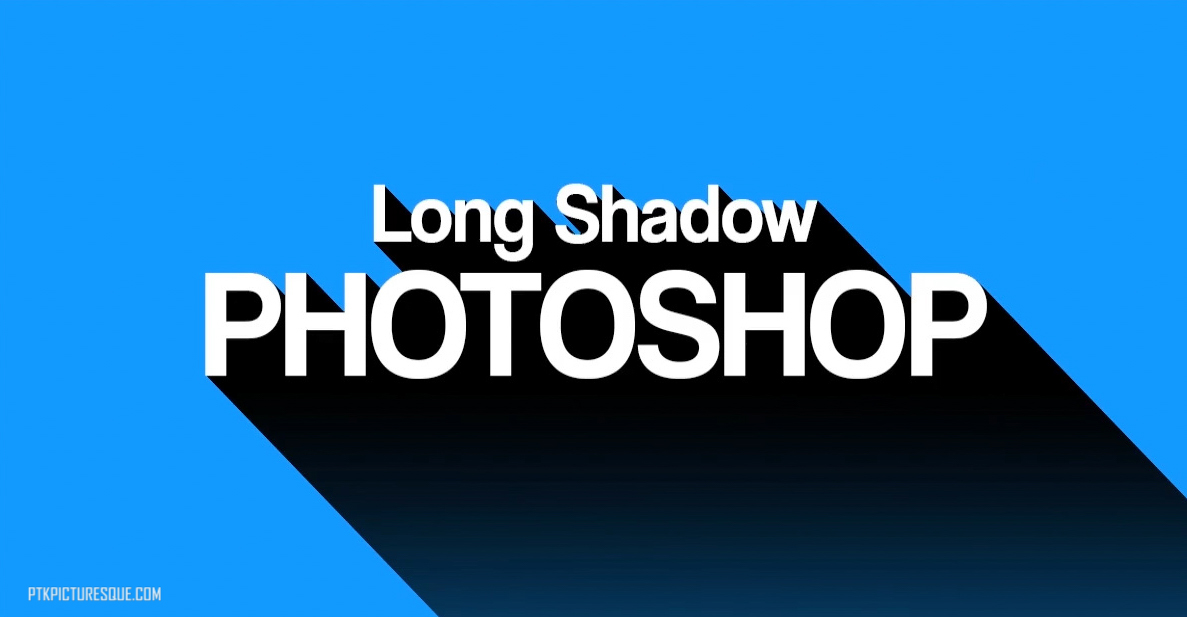
Remember that this is a non-destructive design – yes, the text can be updated. To see how to update the text in this design, watch from here:

Be sure to watch the full video for usage of the FREE Photoshop Action!
The font used in this tutorial is Coolvetica Regular from the free Coolvetica Font Family.
Please view some of my work by selecting Photography or Artwork from the header menu.
If you like what I do, please follow me on these platforms:





You must be logged in to post a comment.